

Travel App
The Cool Panda Trip Plans App
Check out this short video for an easy to follow along walk through of installing the Trip Plans app, accessing your itinerary, and other functionality.
How to Open Your Trip in the Cool Panda Trip Plans App

1. Open Your Trip Link
On your phone, open the email or message we sent and tap the button that says “View Itinerary.” Your trip will first open in your mobile browser.

2. Download the App
Once your itinerary opens, tap “View in App.” This will guide you to download the Cool Panda Trip Plans App from your app store.
If you don’t see the button right away, look for a small app banner or button near the bottom of your screen.
If you haven’t downloaded the app yet, tap “View in App,” then choose “Get the App.” Once it finishes installing, tap “Open” in the app store to launch it

3. Save Your Trip
After installing the app, choose “Save to My Account.” Log in or create an account if prompted. Be sure to use the same email address where we sent your itinerary so your trip syncs correctly.
4. Enable Chat & Notifications
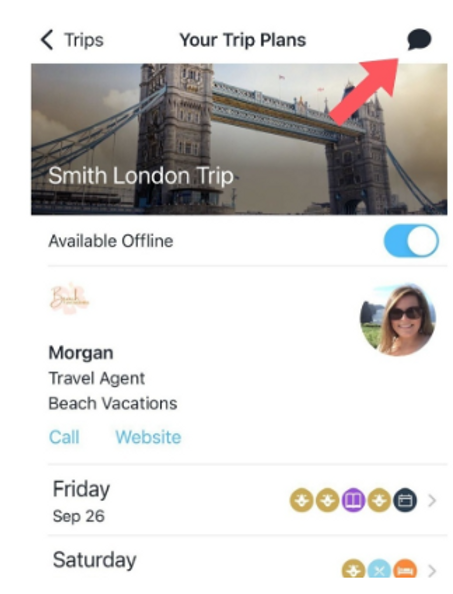
The app includes a chat feature so you can message us directly. We recommend turning on notifications so you receive trip updates and messages. If you are part of a group, the chat will message everyone in the group. This is a great way to communicate pre-cruise and will also work onboard with the ship's wifi.
5. Offline Access
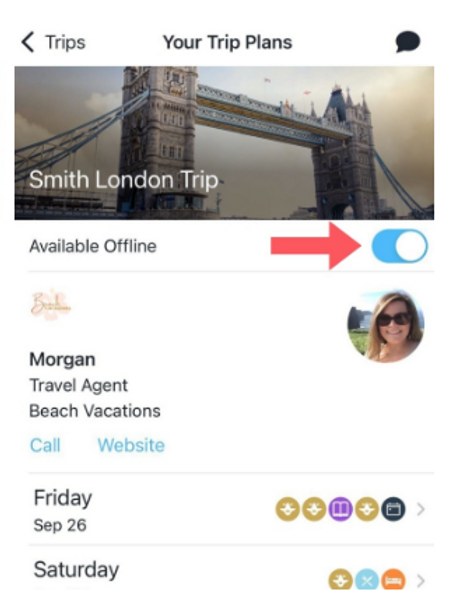
You can download your itinerary inside the app for offline viewing. This allows you to access your travel details even without Wi-Fi or cell service